Burst Dropdown Menus
Two different dropdown menus come into play when you burst a report: the Bursting menu on the driver report, and the From Drilldown menu on a called sub-report. Both are covered below.
Bursting Menu on the Driver Report
The Bursting dropdown menu appears on the driver report once a burst calculation has been added. It is where you manually test a burst and control how sub-reports behave during a burst run.
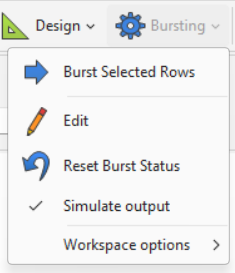
To manually test a Burst calculation, highlight the row(s) you want to burst on the driver report, right-click, and select Burst Selected Rows (also available from the Bursting dropdown menu). The driver report updates with the burst results, and, if Show Target During Run is checked, the sub-report opens for comparison. You can also Reset Burst Status from this menu to clear a previous burst and run an additional test.
The Bursting dropdown menu includes several settings that may apply across all three burst types:
- Simulate Output — when checked (the default for private reports), a test burst runs without actually sending emails or writing to output directories, so you can test safely without distributing to a live audience. This setting is not saved on a private driver report — it resets to checked the next time the report is opened, so re-verify it before each test. When a report is run from Automator, the report automatically unchecks Simulate Output, since Automator assumes the burst has already been tested and is ready to distribute.
- Workspace Options:
- Silence Target Reports — when checked, suppresses sub-report windows from opening during a burst, which speeds up processing. Unchecked, each sub-report opens in an adjacent window tiled vertically or horizontally — useful for side-by-side comparison during testing, but slower. Checking this option overrides and silences any Show Target During Run settings configured on individual bursts in the report.
- Highlight Current Row During Burst — highlights the data row currently being processed, useful for watching burst progress during testing. This slows report processing, so use it only while testing, not in production. It's especially handy when Silence Target Reports removes the visual cue of watching sub-reports open in the side window.
- Close Target Reports When Closing Driver — automatically closes any open sub-report windows when the driver report closes, saving you from closing each one manually.
Note
Silence Target Reports and Close Target Reports When Closing Driver don't apply to Master (Bring Back) Bursts, since a Master Burst doesn't open a new window for its sub-report — Close Target Reports applies only if you are using Show Target During Run. You can still view a Master Burst's related sub-report by highlighting a row and selecting an available drilldown, if one exists.
Warning
When you turn off Simulate Output to test real email distribution, keep in mind who you are emailing or, if still testing, email only a few sample users who have been pre-notified of the test.
From Drilldown Menu on the Sub-Report
When a sub-report opens alongside the driver report, the sub-report window carries a From Drilldown menu. It shows the relationship between the driver report and the sub-report generated from the burst calculation, and lets you inspect and adjust what was passed through — for example, pass-through fiscal year or period values from the burst calculation's Lookup Values. This is helpful when several report windows are open and you need to see which driver report led to which sub-report.
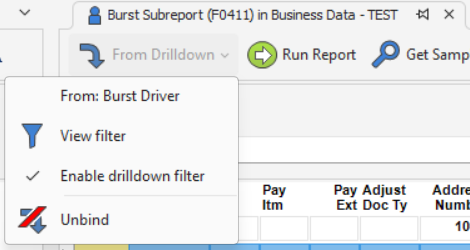
The menu provides three options:
- View Filter — see how the information was passed through from the burst calculation's Lookup Values.
- Enable Drilldown Filter — temporarily uncheck this to turn off the drilldown filter when you want to view the sub-report in a broader context rather than limited to the drilled-in rows.
- Unbind — detach the drilldown from the sub-report so you can run the report independently, change it, and save changes to it as a standalone report.
Warning
Do not click Save on an unbound private sub-report if you made changes you do not want kept. Once unbound, it is a standalone report and your changes will overwrite it.