Utilizing System Variables/Parameters in Dashboards
Parameters Available by Default
| Parameter | Description | Type | Example Value |
|---|---|---|---|
| SYS_Address_Number | Address Number | Number (decimal) | 1001 |
| SYS_Business_Unit | Business Unit | String | 1 |
| SYS_Company | Company | String | 00001 |
| SYS_LastRunTime | Time at which the report most recently run returned data | Date | 6/26/2024 1:55 PM |
| SYS_MasterFilterSet | Indicates whether the master filter has been set | Boolean | Yes |
| SYS_USER | USER | String | ANNA |
Note
More security associations that create system variables to be viewed as parameters can be added inside of Mobie Administration.
Displaying Last Run Time on your Dashboard
To display last run time on a dashboard, you can create a calculated field that references the SYS_LastRunTime parameter.
- Right-click in the Data Source field list section of the dashboard designer and select "Add Calculated Field".
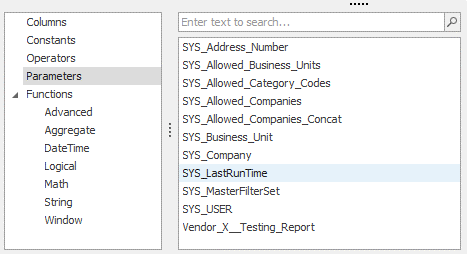
- Select "Parameters" in the bottom left of the expression editor, then double-click SYS_LastRunTime from the bottom middle panel to insert into the expression.
- Select OK. Rename the calculated field to something more meaningful like "LastRunTime".
- Place the calculated field into a widget.
- Good options for where to place the field include: Text Box, Cards, and Grid. Review examples below.
- You will need to adjust the date format to include whatever precision of date/time that is relevant to you. The examples below are all setting LastRunTime to the format of (Minute: Long).
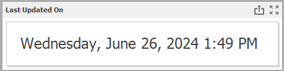
- Text Box: Pull in LastRunTime calculated field as a value. Change Aggregation to Max or Min. Adjust format. Right click in Text Box and select "Edit". Right click again to select "Insert Field" and choose the LastRunTime field value. The example below shows adding text to the front of the text box for "Last updated on " as well.
- Card: Pull in LastRunTime as the Series value. Adjust format. For this display type, pull in some value to Actual Value (this will be hidden). Edit the card layout options to only view the title which is your time output.
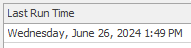
- Grid: Pull in LastRunTime as a value. Adjust format. If you have multiple rows, the LastRunTime calculated field will repeat.

Note
In the case of having multiple reports in a dashboard, the calculations are tied to the data source (report), not the dashboard. However, parameters apply to the whole dashboard and are independent of the data source. If you have reports on different report schedules, the LastRunTime parameter will display the most recent data refresh regardless of which report the calculated field is placed under.
Using a Multi-Valued System Variable in a Dashboard
It is possible to create a multi-value system variable. This is done by creating a security association that returns a semi-colon delimited list. See the admin guide for more information.
To use a multi-valued system parameter, follow these steps: In the Dashboard, ensure the parameter for your new "SYS_" parameter is of Look-Up Setting of "Static List". This is typically determined automatically, but might need to be set manually especially for non-Table Lookup created lists.
Note
Static List does not support values that have leading or trailing whitespace. If your values have leading/trailing whitespace please create a security association using the trim calculation. Then, in the dashboard, trim the value that will be used to compare against this security association..

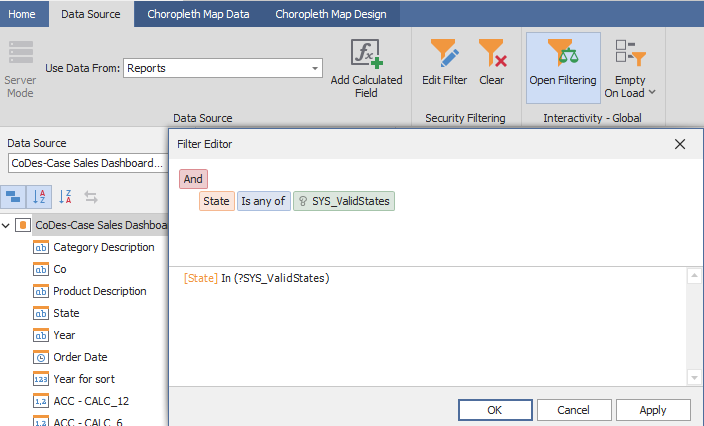
Once you have a multi-valued system parameter, it is easy to filter the entire dashboard data set, using an "any of" operation, which translates to a high-performance IN clause:
Note
Dashboards created prior to 8.0.11 will likely have these multi-valued parameters represented as simple strings, along with a complex string operation to perform the actual filter. Changing to multi-value parameters will substantially improve the performance of these dashboards (up to twice as fast), so it is highly recommended that you change these cases. Ensure the parameter's Look-Up Setting is set to Static List and use the "any of" operation to test in your filter.