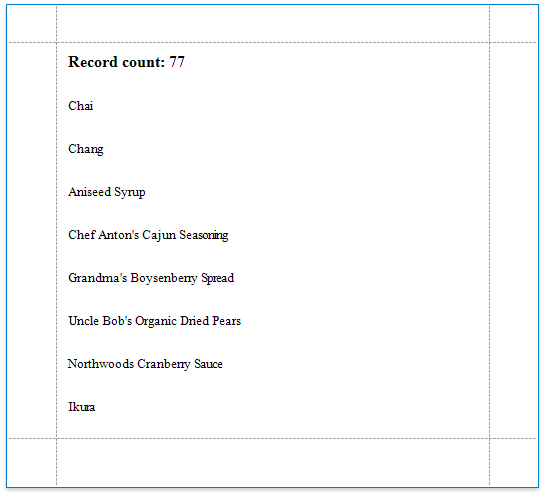
Count the Number of Records in a Report or Group
This document describes how to display the number or records in a report or group.
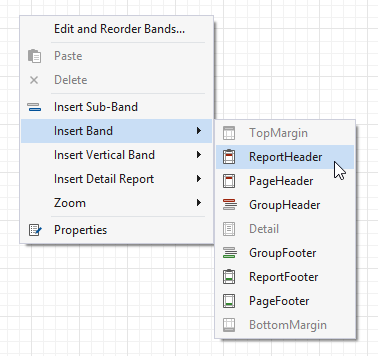
- Right-click the report's design surface and add a Report Header or Footer to display the record count for the entire report.
Note
Use a Group Header/Footer for displaying record counts for groups, and a Page Header/Footer for displaying record counts for pages.
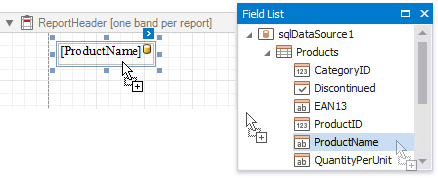
- Switch to the Field List and drop the corresponding data table field onto the created band to create a data-bound label.
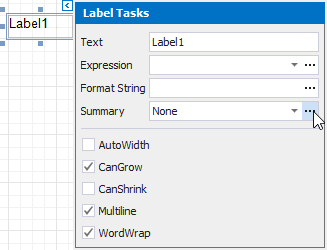
- Click the label's smart tag. In the invoked Label Tasks window, click the Summary field's ellipsis button.
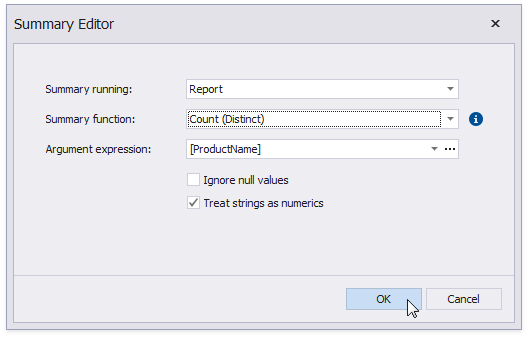
- In the Summary Editor window:
- Set the Summary property. Select Report to count the records throughout the entire report, or select Group or Page to reset the record count for every group or page.
- Set the Summary function property to DCount.
- Set the Argument Expression property to the data field you need to count.
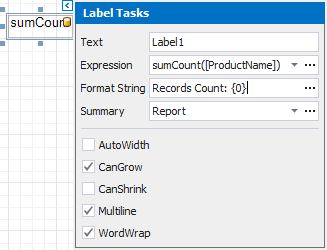
- Back in the Label Tasks window, you can use the Format String property to format the resulting value:
You can switch to Print Preview to see the resulting report.