Concepts Common to Every Burst
Every Burst calculation is built from the same set of settings, no matter which type of output it produces. This article covers those shared settings once, in the order they appear in the Burst calculation window. The Distribution Burst, Master (Bring Back) Burst, and Drilldown Burst sections later in this guide assume you're familiar with everything here, and cover only what's different for that type.
Main Report vs. Sub-Report(s)
Creating a Burst calculation always involves at least two reports:
- The driver report (also called the parent, main, or master report) — the report the Burst calculation is added to.
- The sub-report — the report the Burst calculation calls.
The driver report acts as the "driver" in dictating what gets called inside each sub-report.
Automator Licensing
Scheduling a Burst to run automatically requires an Automator License. Without one, a Designer can still run the driver report and trigger its burst manually — distributing sub-reports or bringing back values on demand.
Burst Calculation Settings
The settings that follow make up a Burst calculation. They are described here in the order they appear in the Burst calculation window, and they behave the same way for every burst type.
Report Selection
Every Burst calculation requires a Report selection — the private or public report to use as the sub-report.
- A private report is typically viewed and used by a Designer.
- A public report is one that has been published to a select audience. If you want to select a report as public and it hasn't been published yet, it won't appear in the public report dropdown — you'll need to publish it first.
Note
Although a private report can be used as a sub-report, we recommend using a published report when possible. A published version is a fixed, vetted copy, so there is less danger of someone changing a report while it's being used as a sub-report without anyone realizing the sub-report's behavior has changed.
Burst on Run & Show Target During Run
Every Burst calculation has two related options:
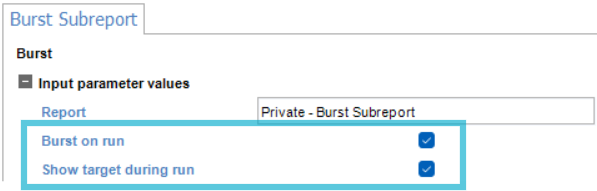
- Burst on Run — when checked, the sub-report is automatically generated each time the driver report runs.
- Show Target During Run — when checked, the sub-report opens in a new window/report inside DAS as it's generated, so you can view it.
Note
Master (Bring Back) Bursts require burst on run and will run the burst for all rows in the data set whether the driver report is queried by Run or by Get Sample Data. This is intentional behavior to ensure all rows for the generated column(s) are returned in the driver.
When testing a Burst calculation, leave Show Target During Run checked to confirm the sub-report is generating correctly, then uncheck it once testing is complete if no longer needed. Test against a small subset of driver rows so you aren't waiting on a large number of sub-report windows to open or process — for example, a handful of Business Units rather than all of them. When Automator processes the report, it ignores Show Target During Run, but Burst on Run must be selected for the burst to process.
Which Rows to Burst
Which Rows to Burst determines which driver rows get passed to the burst target. Auto Detect is the default, and it's recommended for most Designers — DAS selects the best-performing option automatically based on the data at query time.
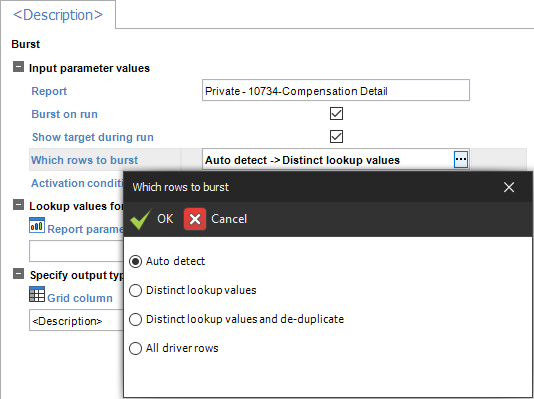
Auto detect (default)
This option usually ensures the best and fastest sub-report calculation at generation, caching what it needs to avoid extra query fetches. Normally, it is recommended that users leave this option set to Auto Detect, allowing DAS to select the best choice based on the data at the time of query to optimize results.
Warning
Auto Detect can produce incorrect results in one specific scenario: If the burst target's parameters are used for anything other than a grid column filter (for example, in calculations or variable calculations), those parameter values could get cleared during Auto Detect's optimization. If you're seeing unexpected results and your target report uses parameters this way, override Auto Detect and test with one of the options below on a smaller dataset first.
Other Options for Which Rows to Burst
The remaining options are intended for advanced use and should be chosen deliberately:
| Option | What it does |
|---|---|
| Distinct lookup value | Runs the query once per unique value for each field combination in the Lookup Values section. Reduces query time, especially useful over WAN connections. |
| Distinct lookup values and de-duplicate | Same as above, but also removes duplicate returned values automatically. |
| All driver rows | Runs the query once per driver row, even when lookup values repeat. Can significantly slow report runtime — use sparingly. |
| Once per Group | Runs the query once per group (at the grouping level specified) and caches the result for matching lookup values. Only available when the driver report contains grouped columns that don't depend on the Burst calculation. Try Distinct lookup values first before reaching for this option. |
When you do override Auto Detect, keep the following in mind:
- As with any report you design, always test that the correct data is being retrieved — this matters even more when overriding Auto Detect.
- If your results are not what you expect, use the All driver rows option (preferably on a smaller dataset) to ensure that optimization is not affecting your result set.
- List calculations implicitly depend on burst calculations that bring back a result value such that the Once per Group option is not available when a list calculation is present and the report is grouped by the list column as is typically the case. The implicit dependency allows list calculations to utilize results returned from burst calculations.
Activation Condition
Activation Condition lets you set field-based criteria that determine when a Burst should run — for example, only for certain Companies, Document Types, or Customers. Left blank, the burst runs unconditionally whenever its other trigger conditions (Burst on Run, manual test, etc.) are met.
Activation Condition is used most often on Drilldown Bursts.
Authentication Timing (External Data Connections with Per-User Authentication)
If a burst target uses an external data connection that requires per-user authentication, the Authentication Timing setting on the Burst calculation controls when that authentication happens:
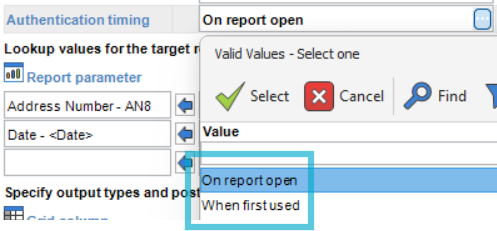
Review more about this on Burst Calculations Using External Data.
Lookup Values for the Target Report
Lookup Values connect the driver report to the sub-report, matching the criteria needed for the returned data to map correctly — similar to a table lookup or table join. For example, a driver report might pass Vendor, Document Number, and Document Type to a target report so the target returns only the matching records for that row.
If no Lookup Values are specified, the sub-report returns all of its data according to its own design, filtering, and parameters. That can produce a very large result set and a heavy load on the server — for example, an F0911 G/L audit-trail sub-report with no lookup criteria passed from the driver would return every F0911 record.
To surface a passed value in the sub-report's report parameter field (rather than only in the underlying grid filter), select the report parameter field instead of the data or calculation field in the visual assist.
Note
If multiple report parameter values for a single field are being passed to the sub-report, no value displays in that sub-report's report parameter field — the information is still passed, just within the grid filter portion of the column rather than shown directly.
Output Types & Post Processing
The last step in every Burst calculation is specifying the output — this is what actually differentiates a Distribution, Master (Bring Back), or Drilldown Burst from one another.
Select the visual assist under Output Description to open the Burst Output Settings window, then choose the appropriate option for your output:
- Data or Presentation — generates a file (Excel, PDF, HTML, CSV, etc.) from the sub-report. Choosing either of these reveals two additional tabs, File and Destination, covered in the Distribution Burst section.
- Result — returns a value from the target report back to the driver report, used for Master (Bring Back) Bursts.
Note
Presentation options only appear if a presentation layer exists in the sub-report. You may select either a DAS format or an Excel Presentation format, whichever suits the output. A single Burst calculation can have multiple output types configured at once by adding additional rows in the Output Description section.
Editing a Burst Calculation
Designers can edit a burst calculation column three ways: select Edit from the Burst menu, return to Design | Calculations and select the specific burst calculation, or double-click the burst calculation column to edit it quickly.
Looking at the grid columns, the driver report displays the burst calculation column, which shows a status of Not processed until the report is run or the row is burst.
Note
You can add more sub-reports to the same driver by creating additional burst calculations for each one required. This assumes those sub-reports are generated at the same time and under the same criteria when Automator runs.