Comment
Description
Allows for adding comments/annotations to a report that persist with the report itself. Including comments/annotations is possible for designers and subscribers in a published report. These string values can apply to detail, subtotal, or grand total row levels.
Calculation Editor
Associated Column(s)
| Input | Input Values | Required |
|---|---|---|
| Input 1 | Column | No |
Remarks
- The values of the calculation's associated columns in a row determine the uniqueness of the comment (see examples). To create a column where every row has a unique comment, the associated columns should be set to the primary key of the table the report is based on.
- If no associated columns are added, then the user will only be able to input and edit comments in subtotal and grand total rows.
- Once this calculation is saved, the associated columns cannot be changed.
- In a published report, subscribers with the Edit Comments permission can edit and save comments as well. Learn more about publishing comment behavior in the Publish Your Report to Others section.
- Unlike editing comments in a published report, comments edited in a private report are not saved immediately to the database. Instead, comments are saved when the report is saved.
- If comments are changed but need to be reverted, selecting Undo will return to the previous comment. At the time of saving a report, the Undo action is no longer available.
Limitations
- In ProReports and Dashboards, only detail row comments will be brought over.
- Master Burst Bring Backs do not support Comment calculations being used as return values.
- Comment columns cannot be grouped on.
Audit Information
Hovering over a comment will show the date, time, and user who last edited the comment.

Note
Entering into a comment cell and deleting an individual comment will save audit information for that deletion. To remove audit information when deleting comments, use one of the Clear Comment options.
Clearing Comments
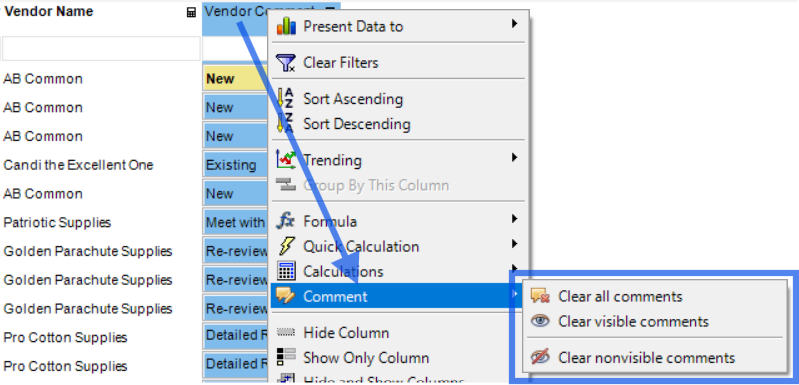
It may be necessary to remove comments in a column as a whole rather than deleting them on a row-by-row basis. There are three options to clear comments in selected columns.
- Clear all comments: Completely remove all comments in the selected column(s) regardless of filters.
- Clear visible comments: Only removes visible comments in the selected column(s).
- Clear nonvisible comments: Only removes comments not currently visible in the selected column(s). Be aware of what filtering is being done on a report's data before selecting this action.
Note
These options only become available after a report is saved with the current groupings.
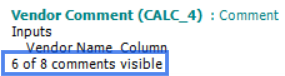
To identify the total number of comments and the number of comments currently visible in a column after a report run, go to Design Notes and scroll to the comment calculation. There, a Visible and Total Comments value can be seen.
Keyboard Navigation with a Comment Calculation
In addition to being able to click into any editable comment cells in a report, users may be able to utilize keyboard navigation to help type a series of comments faster.
- Selecting Enter will place your cursor one row below the current row. This makes typing in comments one after another easy.
- Selecting Tab will place your cursor one column to the right of the current cell.
- Utilize the Arrow keys to navigate from cell to cell easily.
- When in edit mode on a specific comment cell, right and left arrow keys are accessible to move the cursor between characters.
Examples
Create a Comment Calculation with Unique Row Comments
Let's say you want every row to have a unique comment.
- Select Design > Calculations > Comment
- Select all columns that compose the table's primary index as the associated columns
- Select Save and Close
Or using a Quick Calculation:
- Select all columns that compose the table's primary index
- Quick Calculations > Text > Comment
If you then comment on a row, that comment will be unique to that row and will not show in any other rows.
Create a Comment Calculation based on two Associated Columns
Let's say you want to leave comments on rows based on the Document Type and Approver Number.
- Select Design > Calculations > Comment
- Select Document Type and Approver Number as the associated columns
- Select Save and Close
Or using a Quick Calculation:
- Select Document Type and Approver Number
- Quick Calculations > Text > Comment
Now, if you comment "Needs reapproval" on a row where the Document Type is AA and Approver Number is 0, every row with those values in Document Type and Approver Number will show "Needs reapproval".
Create a Comment Calculation only for Total Rows
Let's say you want to leave comments only on subtotal and grand total rows.
- Select Design > Calculations > Comment
- Select Save and Close without adding any associated columns
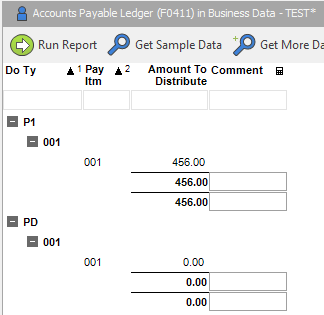
Now, only subtotal and grand total comments will be editable.
Clear Comments with Specific Text Only
Take this sample report below. Let's say you wanted to delete every comment that says 'Needs re-evaluated'.
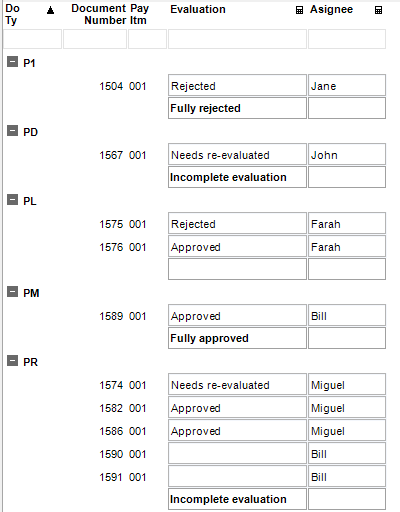
Filter the comment column on 'Needs re-evaluated'
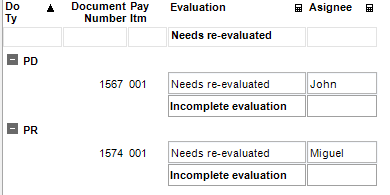
Right-click on the Evaluation column
Comment > Clear visible comments
Remove the filter on the Evaluation column
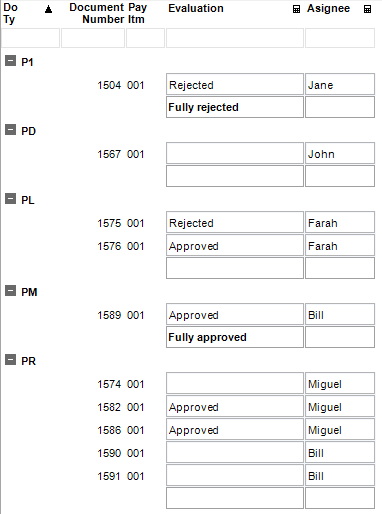
Visible comments will have been cleared while comments hidden by the filter are preserved.